
MSIX is the new packaging format to create new packages. It is aviable on Windows 10 v1809 and later. According to Microsoft packaging has never been easier. In this tutorial I will create a Paint.Net 4.1.5 package on a dedicated Hyper-V Virtual Machine. The package will be deployed with PowerShell.
The order:
- Prepare the packaging client
- At least Windows 10 v1809
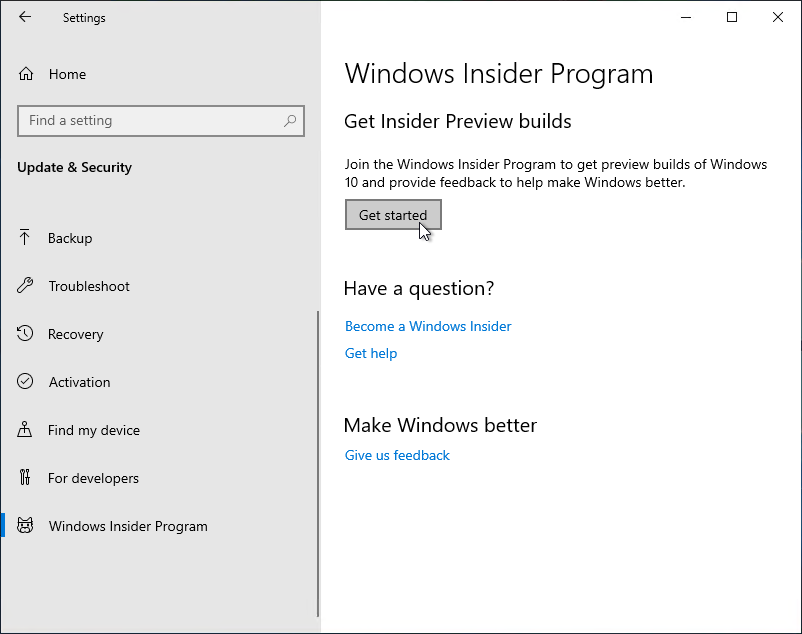
- Participate in the Windows Insider Program
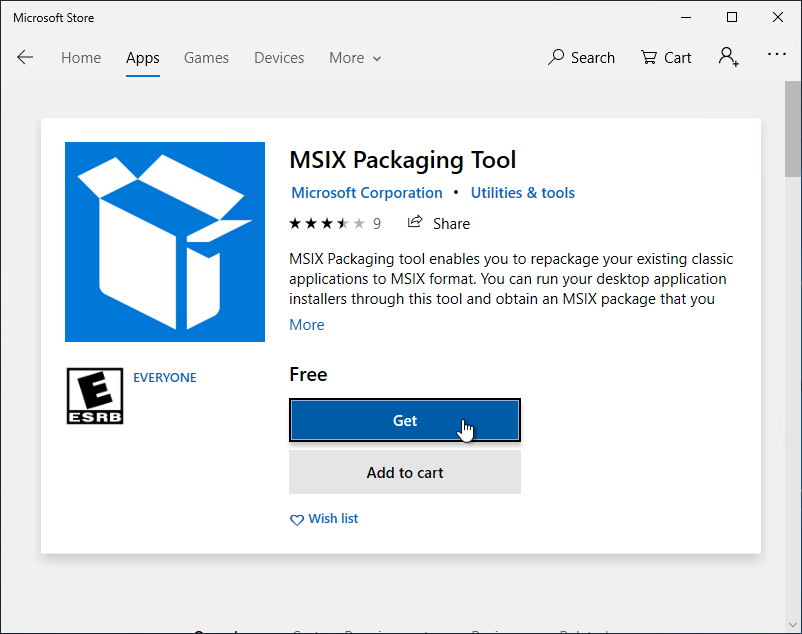
- Install the MSIX Packaging Tool from the Windows Store:
- At least Windows 10 v1809
- Create a self signed certificate to sign the MSIX package.
You can do that with PowerShell
$CurrentDir = Split-Path -parent $MyInvocation.MyCommand.Definition $CertName = $CurrentDir + "\Test.pfx" $PassWord = "P@ssw0rd" $HashedPassWord = ConvertTo-SecureString -String $PassWord -Force -AsPlainText $Org = "CN=Contoso1" $FriendlyName = "Test certificate" $ExpDate = "01-01-2030 00:00:00" New-SelfSignedCertificate -Type Custom -Subject $Org -KeyUsage DigitalSignature -FriendlyName $FriendlyName -NotAfter $ExpDate -CertStoreLocation "Cert:\LocalMachine\My" $TP = Get-ChildItem cert: -Recurse |Where-Object{$_.FriendlyName -match $FriendlyName} |Select-Object -ExpandProperty Thumbprint Export-PfxCertificate -Cert Cert:\LocalMachine\My\$TP -FilePath $CertName -Password $HashedPassWord Remove-Item Cert:\LocalMachine\My\$TP
- Prepare the packaging virtual machine
You can choose from:- Download a 90 day Windows 10 v1809 ISO image.
- Create a virtual machine with Hyper-V
- Capture the Paint.Net 4.1.5 installation
- Revert the VM to a clean state
- Install the Paint.Net package with PowerShell
Capture the installation
Start the MSIX packaging tool and click on Create your app package
| Description | Picture |
| Start the MSIX packaging tool and click on Create your app package |  |
| Browse to the installer... |  |
| ... and select the installer. | 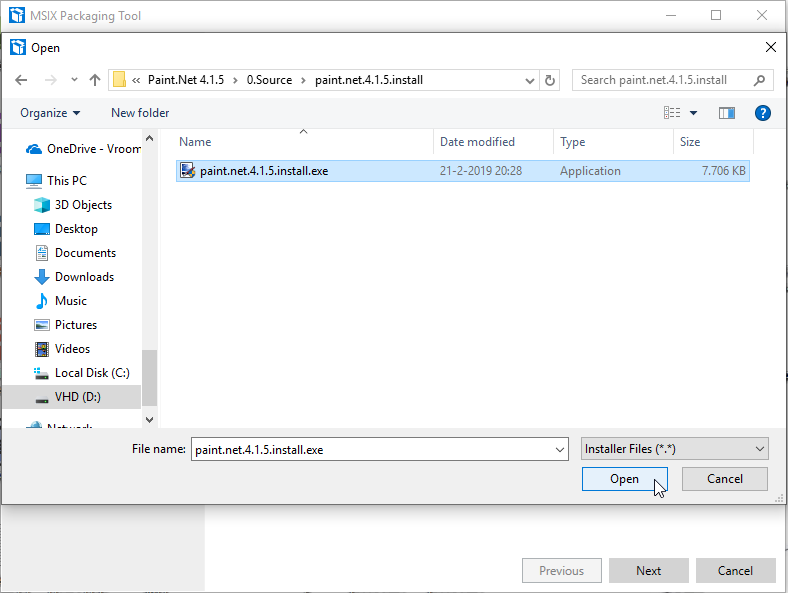 |
| Click [Next] | 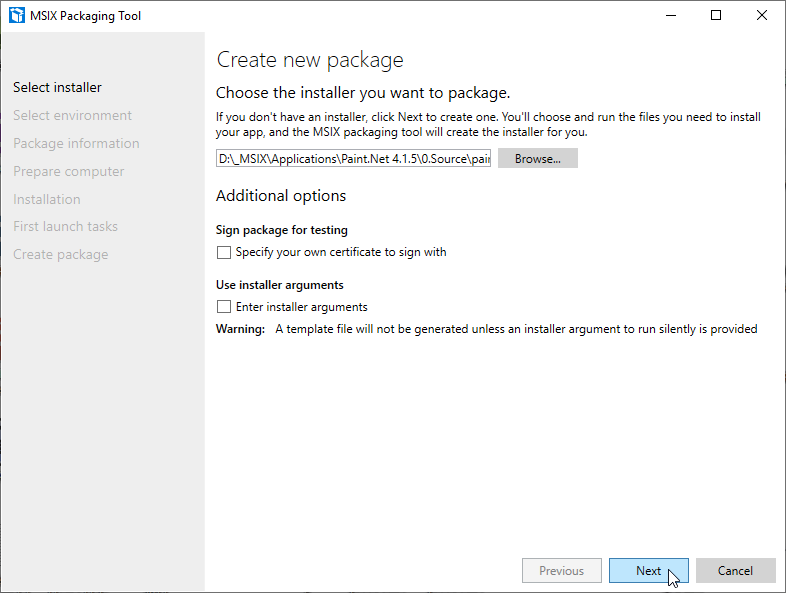 |
| Select the VM you want to use to perform the installation on. |  |
| Enter the login details. |  |
| Wait while the VM is prepared. |  |
| Enter the package details. Once done, click [Next] |  |
| Please wait while the package driver is installed on the VM. It can take a long time. |  |
| Disable the services you do not need. |  |
| Click [Next] | 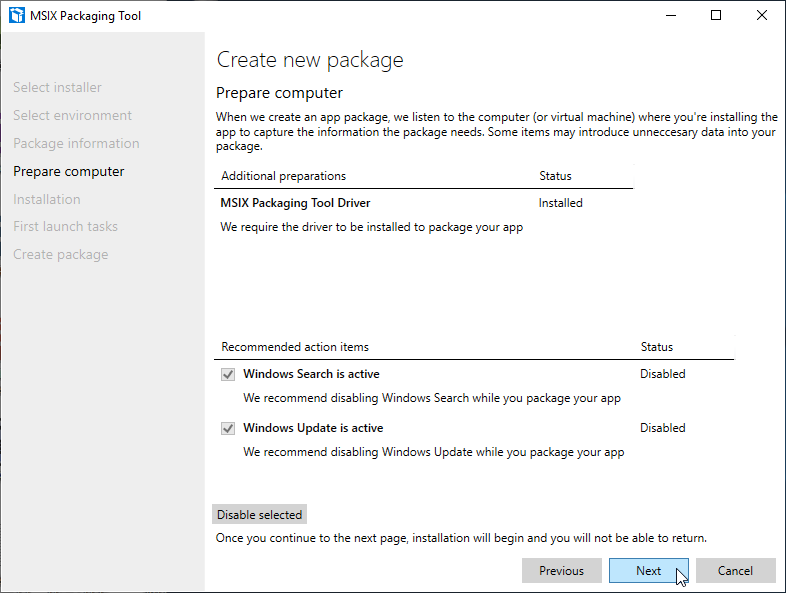 |
| Click [Next] |  |
| Disable the automatic update function. Click [Next] |
 |
| Once installed, do not start the application. |  |
| Click [Next] |  |
| Start the application from here. The changes are still captured. |
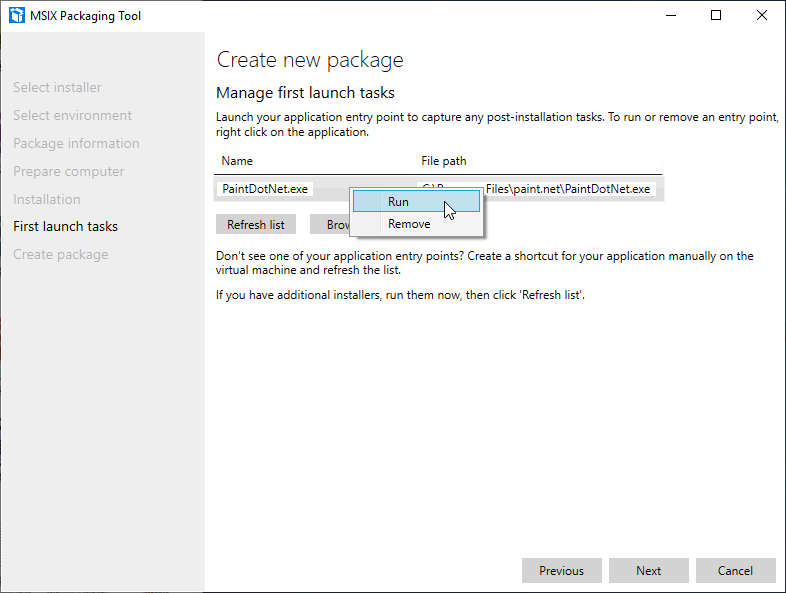 |
| Once started, close the application. |  |
| Click [Next] |  |
| Click [Move on] | 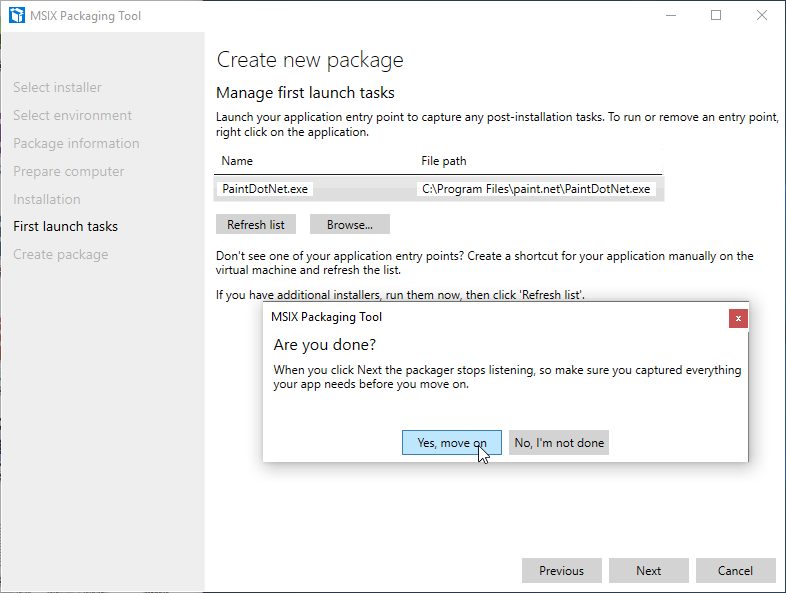 |
| Save the 'raw' version in the correct folder. So you always have a raw version before performing the clean up. |  |
| Click [Create] |  |
| Click [Close] |  |
| Now we are starting the cleanup and assigning the certificate to it. Open the package |
 |
| Open the 'raw' package. | 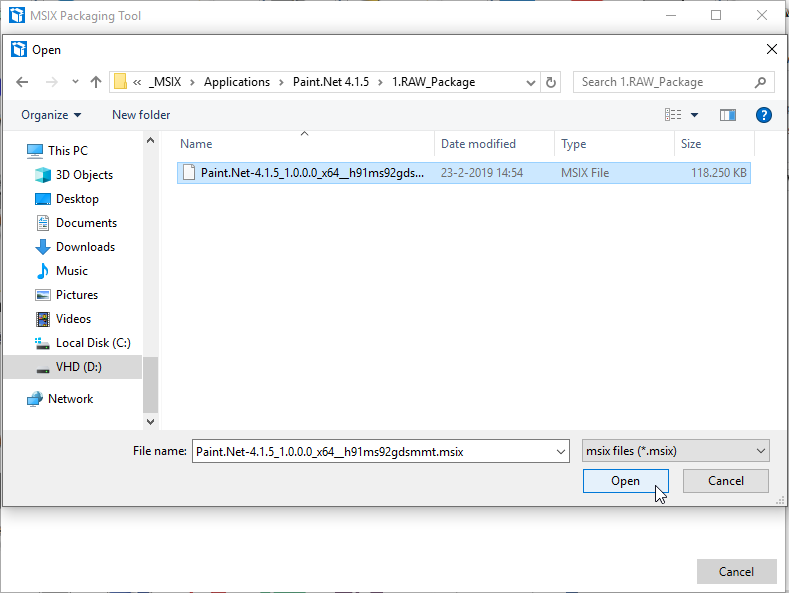 |
| Open the package. |  |
| Specify the certificate (pfx file) | 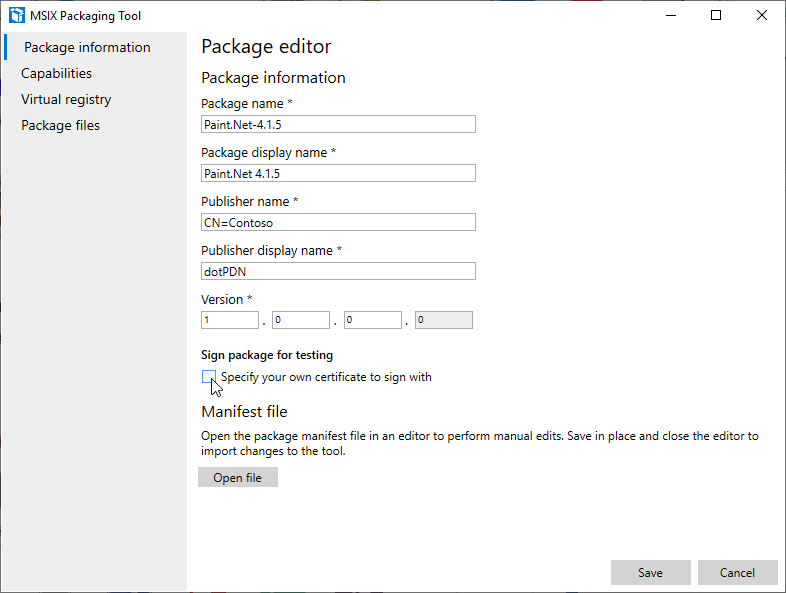 |
| Enter the certificate details. |  |
| Perform the cleanup. |  |
| And we are sure that we want to delete an entry. |  |
| Go to the package files... | 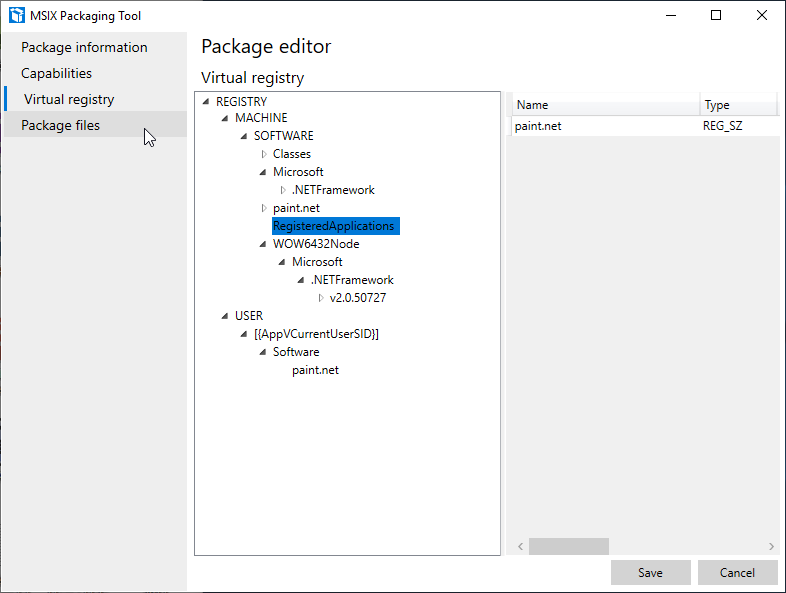 |
| ... and delete all unneeded files. | 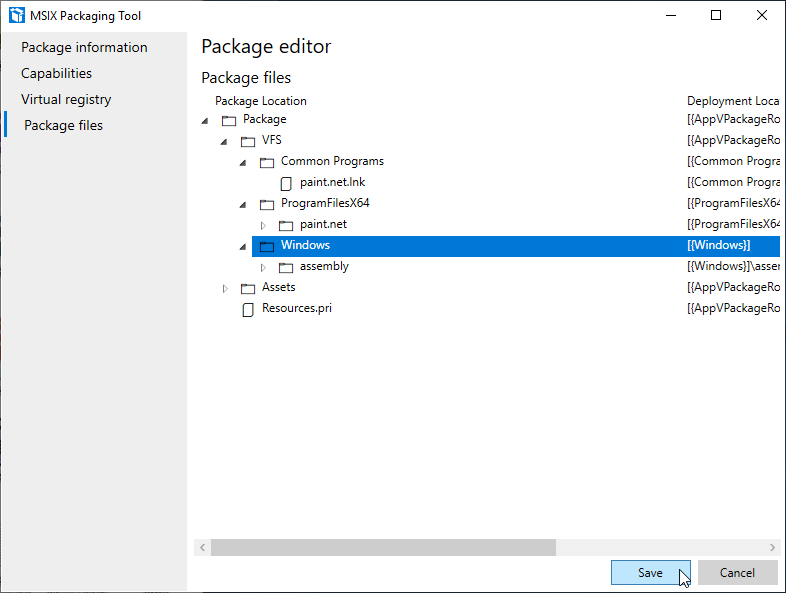 |
| Save the cleaned up package | 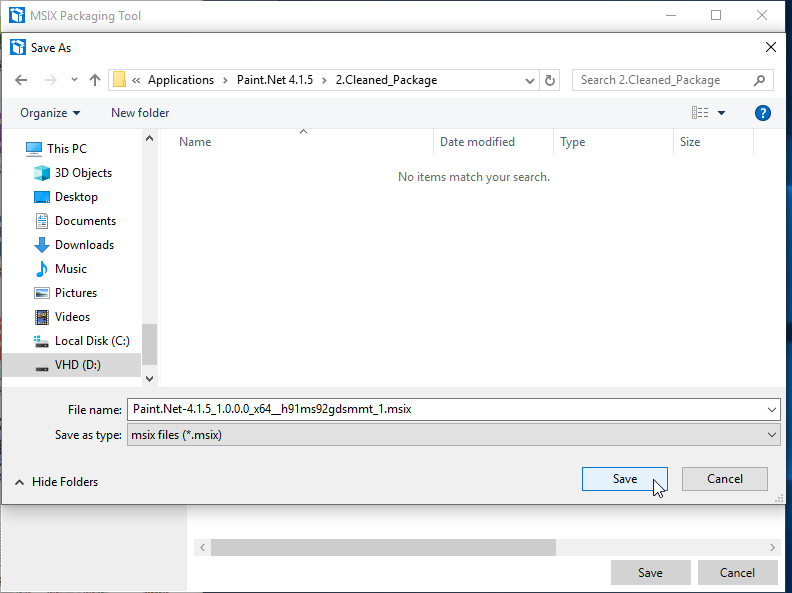 |
| Close. |  |
Install the MSIX package
Revert the machine to a clean state.
Before you can install the MSIX package you have to install the certificate that you created earlier.
$CurrentDir     = Split-Path -parent $MyInvocation.MyCommand.Definition
$CertName       = $CurrentDir + "\Test.pfx"
$PassWord       = "P@ssw0rd"
$HashedPassWord = ConvertTo-SecureString -String $PassWord -Force -AsPlainText

Import-PfxCertificate -FilePath $CertName -CertStoreLocation Cert:\LocalMachine\Root -Password $HashedPassWord
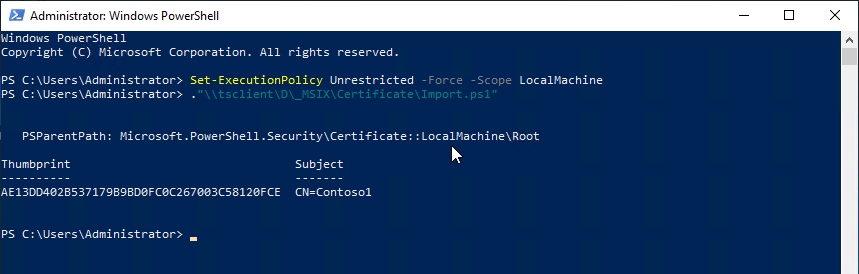
In the certificate manager:
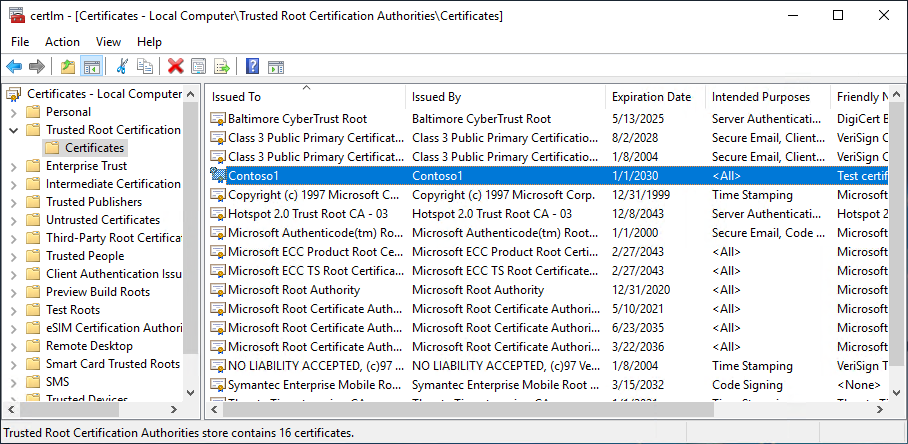
| Description | Picture |
| Start the certificate manager to import a certificate. | 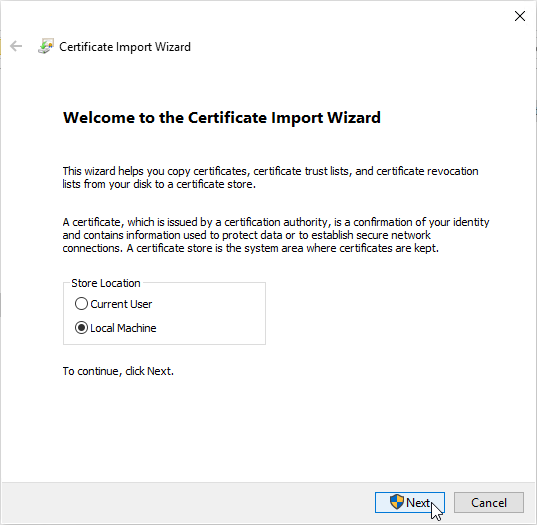 |
| Browse to pfx file. |  |
| Enter the password. | 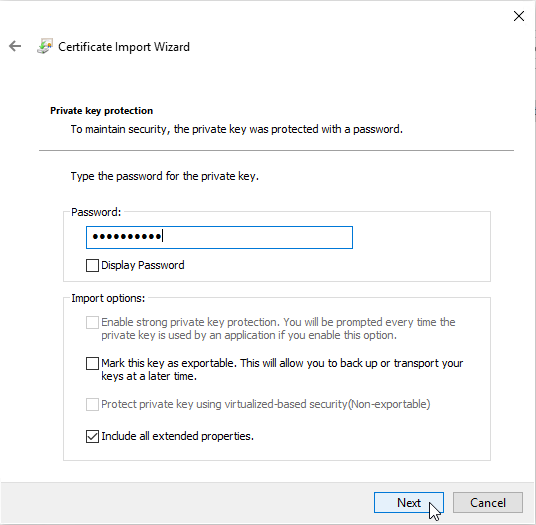 |
| Add the certificate to the Trusted Root Certification Authorities. |  |
| Click [Finish] | 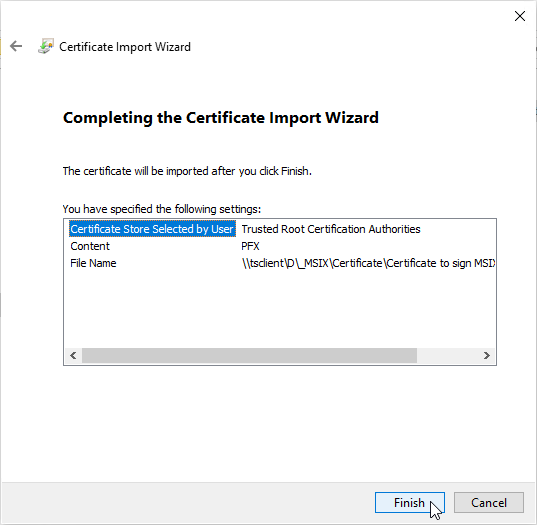 |
| Click [Ok] | 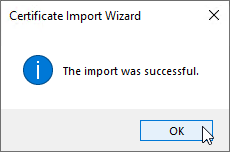 |
| Start Settings -> Updates and Security -> For Developpers. Enable sideload apps. |
 |
| Click [Close] |  |
| Install the application with powershell. |  |
| The progress bar.... |  |
| Start the application via the Start Menu |  |
| The application has been started successfully |  |