
You can easily deploy MSIX applications via Intune to managed company devices. I will describe the required steps in this article.
There are 4 steps:
- Export the certificate to a .cer file file from a computer where the certificate has been installed.
- Create the application in Intune:
- Create the application group
- Import the MSIX file
- Assign to the group
- Test on the client
- Monitor the deployment
Export the certificate to a .cer file from a computer where the certificate has been installed
| Description | Picture |
| Start certmgr and select the certificate you want to export. |  |
| Export as a DER certificate. | 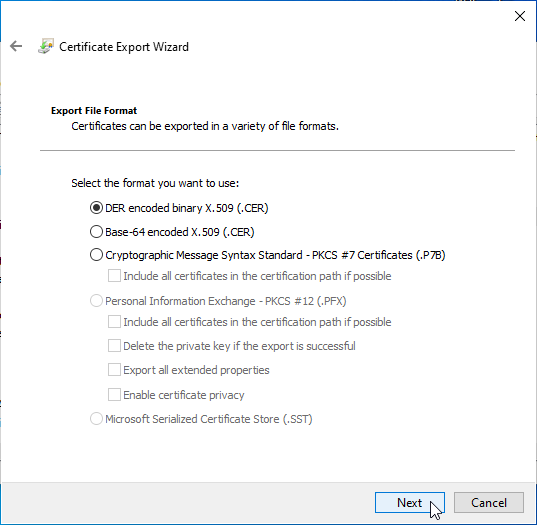 |
Create the application in Intune
| Description | Picture |
| In Intune, go to Client apps -> Windows enterprise certificate. |  |
| Browse to the certificate (cer file) you have created earlier. Upload the file. |  |
| The result. |  |
| Go to Groups and click on [New group]. |  |
| Fill in the group details as per example. | 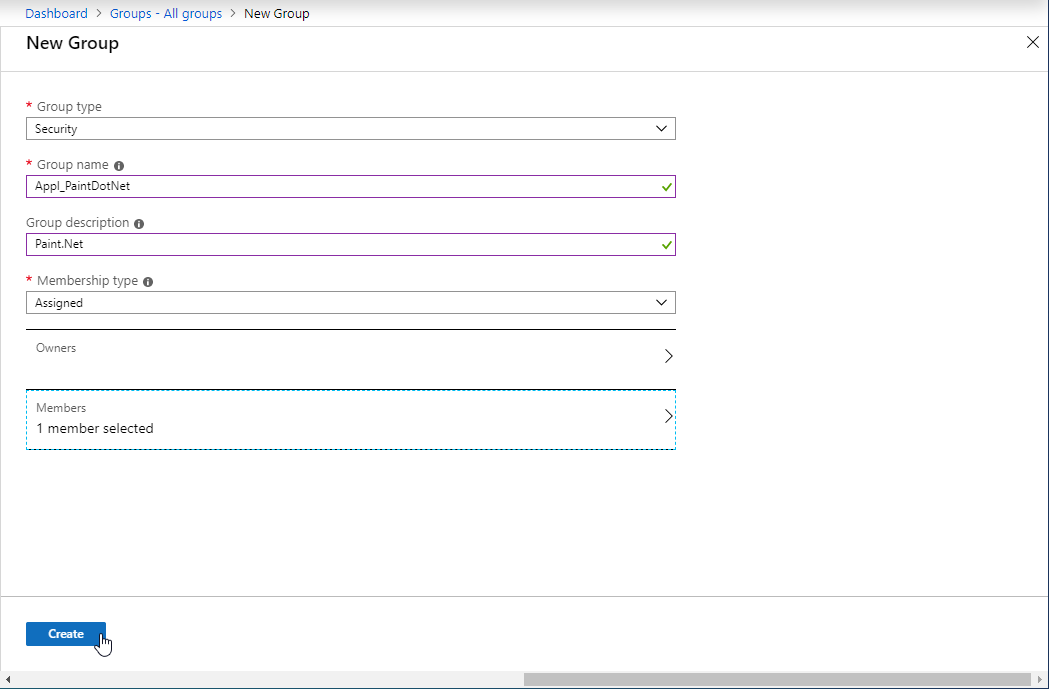 |
| The end result. | 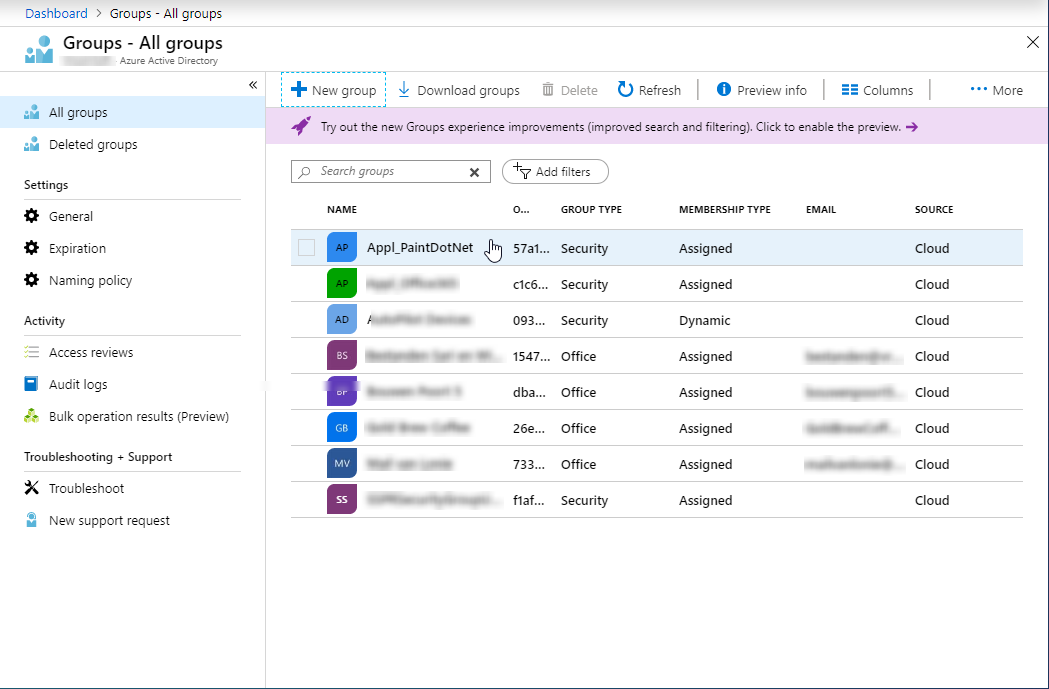 |
| Go to Client apps and click on [Apps]. | 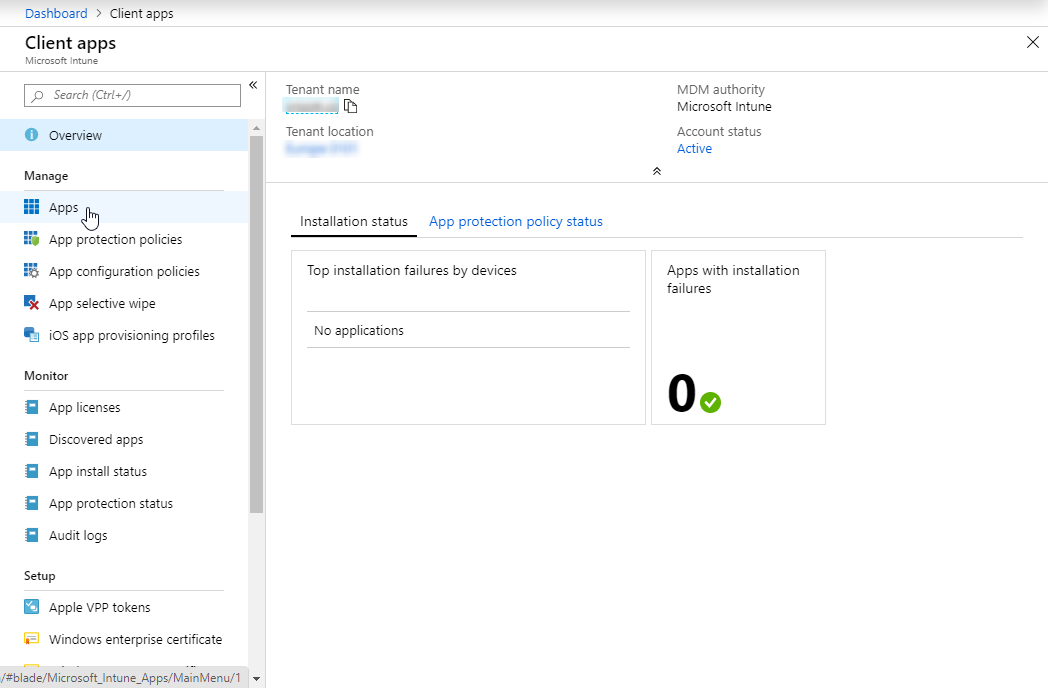 |
| Click [Add] |  |
| Select 'Line-of-business app. |  |
| Browse to and select the .msix file. |  |
| Select an icon for the application. I used 7ZIP to open the .msix file and extract the icon file from the 'Assets' folder. |
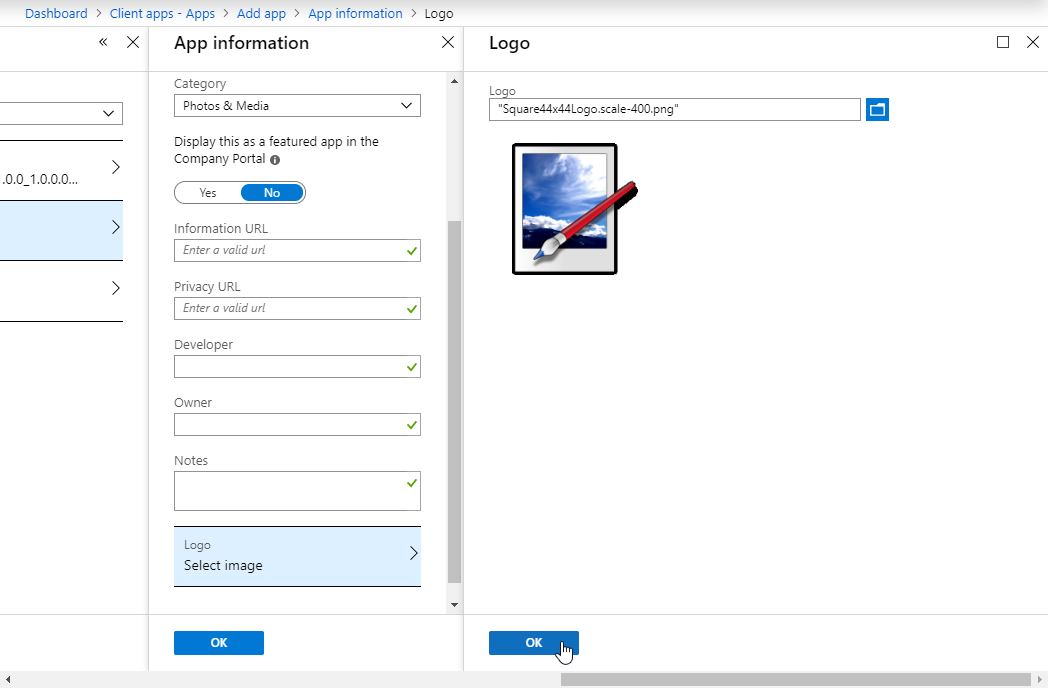 |
| Click [Ok] when done. | 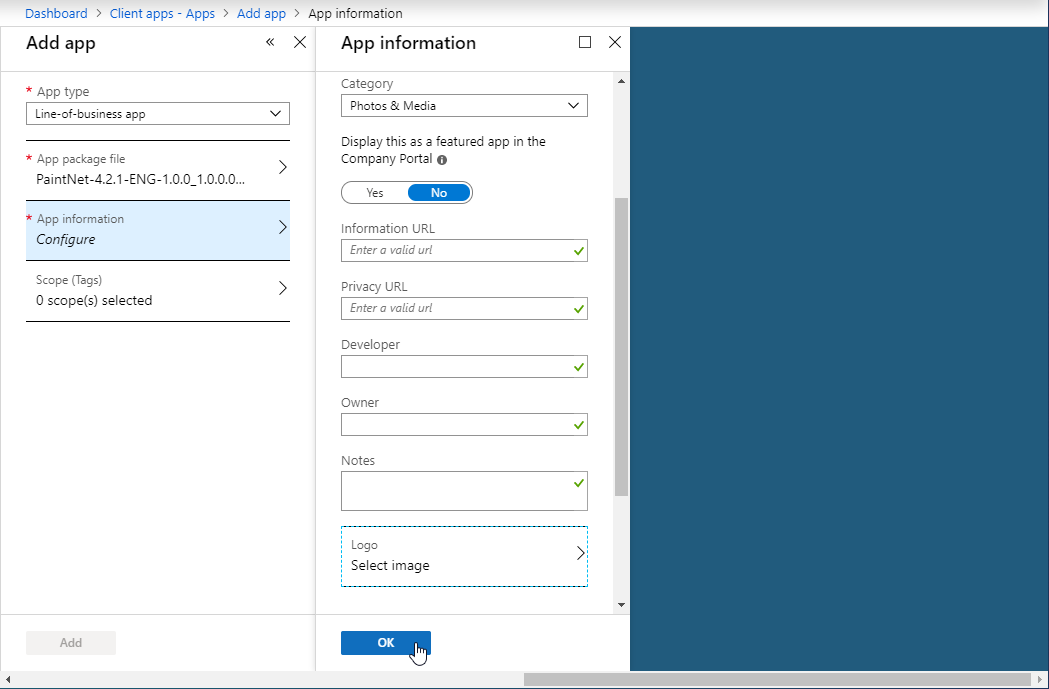 |
| Click [Add]. |  |
| See the progress bar to check the import. |  |
| After waiting a while you can add groups to the new application. Click [Assignments]. |
 |
| Click [Add group]. | 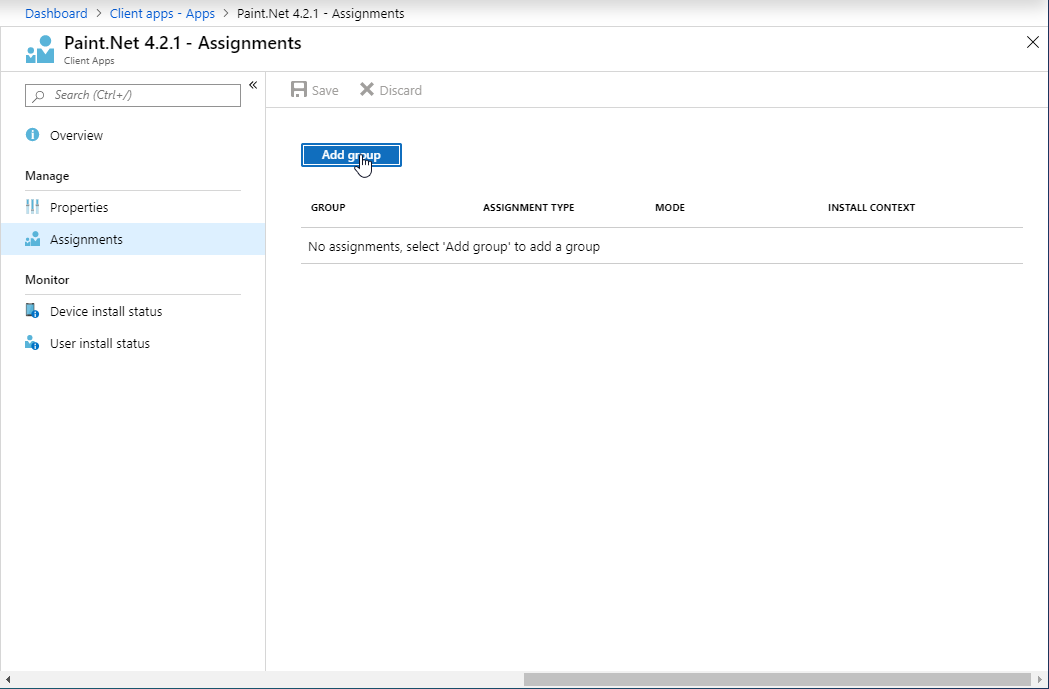 |
| Select [Available for enrolled devices] from the pulldown menu. |  |
| Click on [Included groups]. | 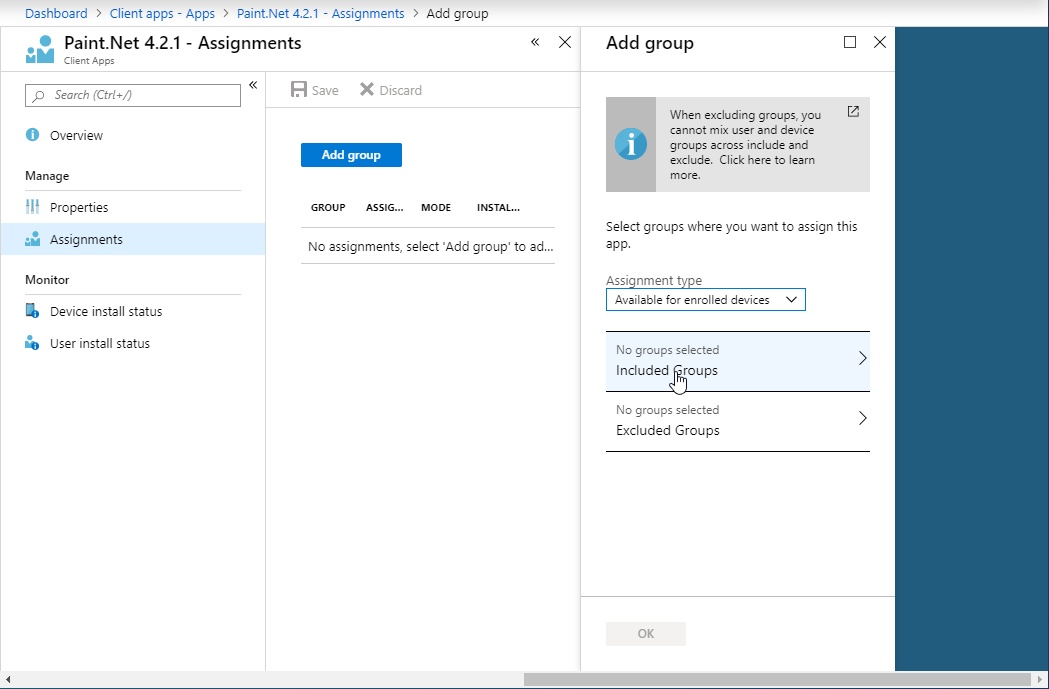 |
| Click [Select groups to include]. | 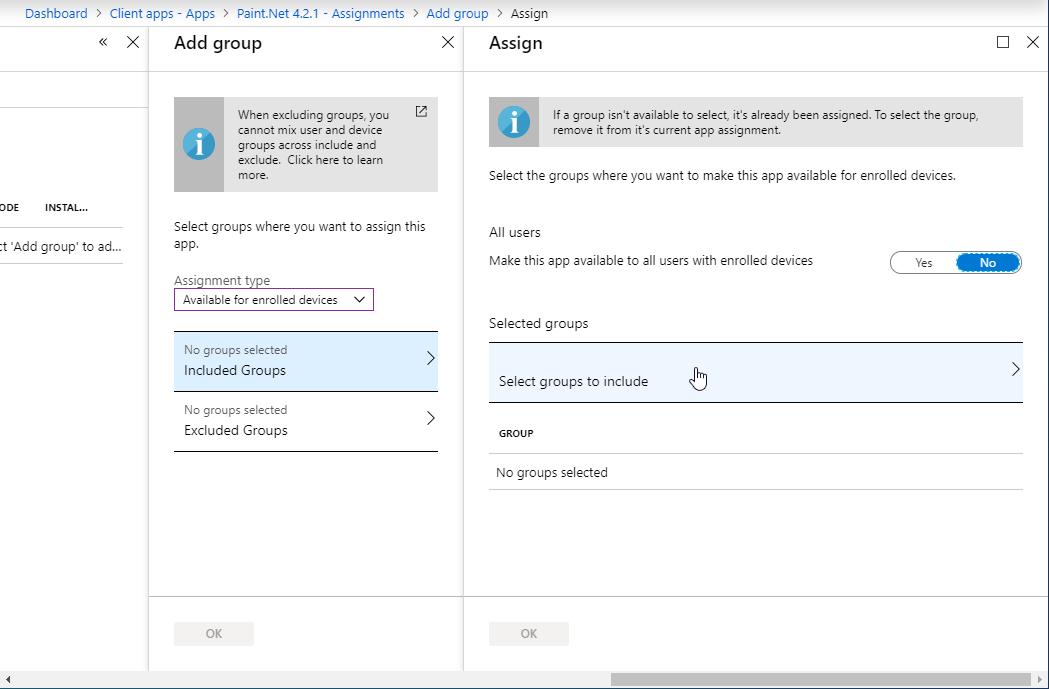 |
| Select the gruoup you have created earlier: | 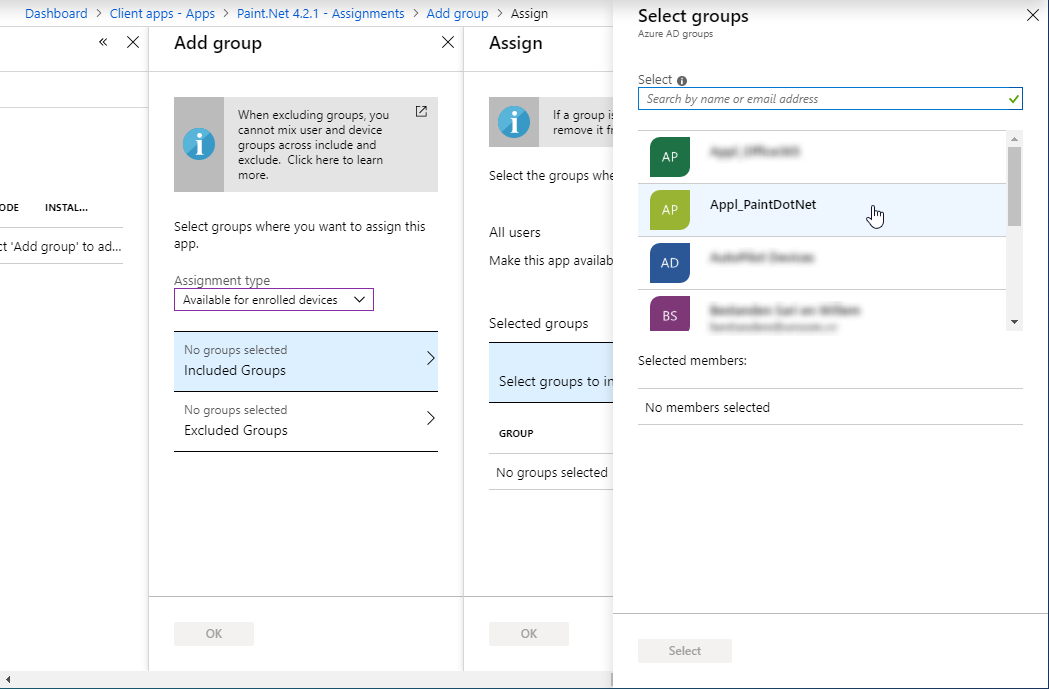 |
| And click [Select]. |  |
| Click [Ok] | 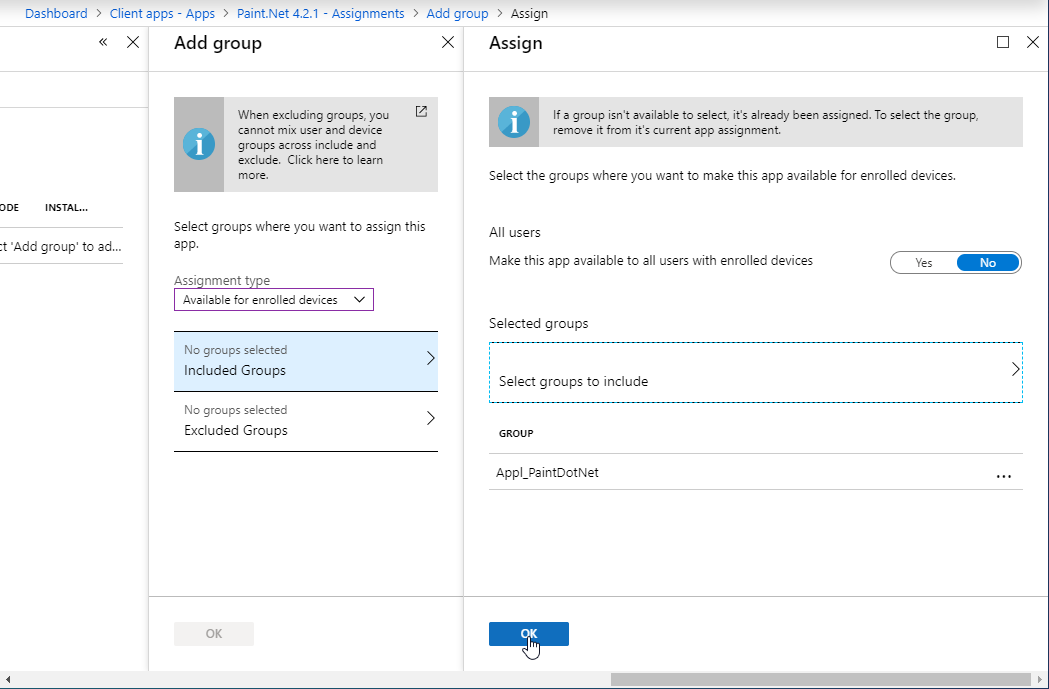 |
| Click [Ok] | 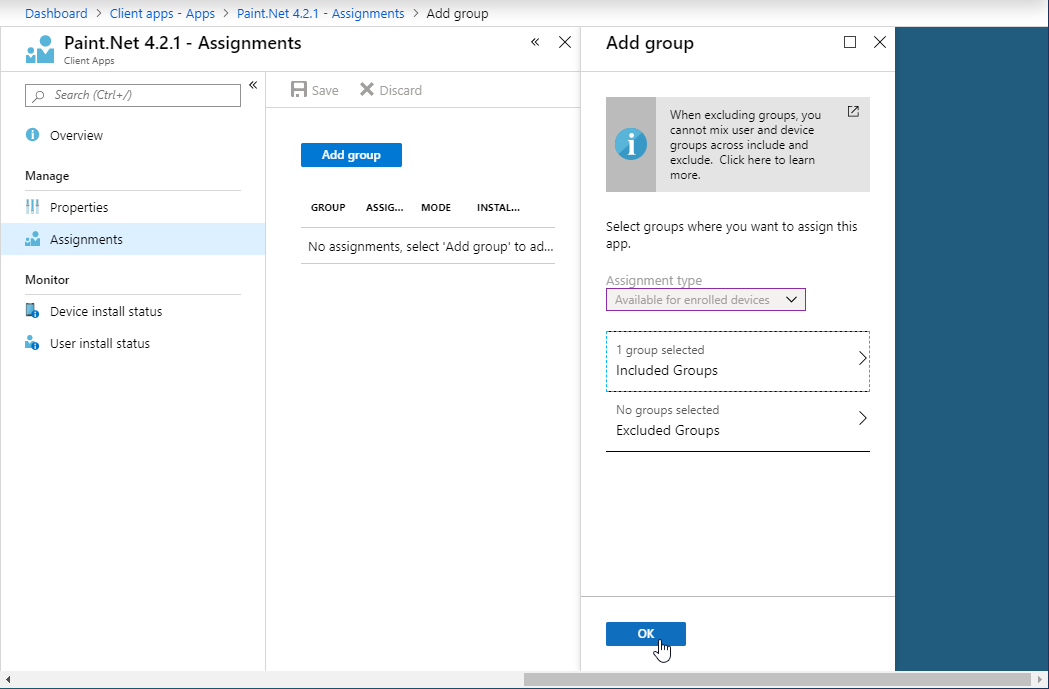 |
| Click [Save] |  |
Test on the client
| Description | Picture |
| In the company portal select 'Paint.Net'. |  |
| Click [Install] |  |
| You can monitor the progress. |  |
| And the end result: a working application. |  |
Monitor the deployment
| Description | Picture |
| You can check the installation status in Intune. |  |